
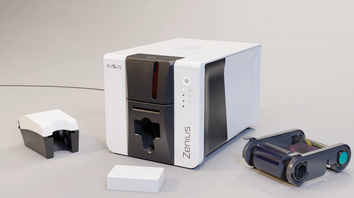
Proper installation of cards and ribbon is essential to ensure optimal print quality and extend the life of your printer. If you’re setting up your Evolis Zenius 2 or replacing supplies, follow the step-by-step instructions below for smooth operation and professional results.
Installing the Cards
The Evolis Zenius 2 features a rear feeder designed for easy loading and consistent card feeding.
Card Capacity & Specifications
- The feeder holds up to 50 cards
- Maximum card thickness: 0.76 mm
- For best results, use ISO 7810 certified PVC cards
- Only use card types recommended by Evolis
Using high-quality cards helps prevent feeding issues, print defects, and premature wear on internal components.
Important Handling Tips
To preserve print quality and avoid damage:
- Do not touch the printable surface of the cards
- Do not use cards that are damaged, folded, or embossed
- Do not use cards that have been dropped on the floor
- Keep cards stored in a clean, dust-free environment
Contaminated or warped cards can cause ribbon tearing, print imperfections, and cleaning issues.
How to Load the Cards
- Open the card feeder.
- Insert up to 50 clean, flat cards (0.76 mm thickness).
- Align the stack properly to ensure smooth feeding.
- Close the feeder securely.
Your printer is now ready for ribbon installation.
Installing the Ribbon
To maintain printer performance and protect your warranty, always use Evolis original High Trust® ribbons.
High Trust® ribbons are specifically engineered for Evolis printers and help:
- Optimize print quality
- Protect internal printhead components
- Prevent ribbon tearing or misalignment
- Maintain manufacturer warranty coverage
Using third-party ribbons may damage your printer and can void the warranty.
Ribbon Installation Steps
- Open the printer cover.
- Insert the ribbon cartridge into the designated slot as shown in your printer guide.
- Ensure the ribbon is properly seated and aligned.
- Close the feeder and press firmly until you hear a click.
That click confirms the ribbon is locked into place and ready for operation.
Final Setup Check
After installing both cards and ribbon:
- Power on the printer (if not already on).
- Confirm the printer recognizes the ribbon.
- Run a test print to verify alignment and quality.
Proper installation ensures crisp images, vibrant colors, and reliable card feeding — keeping your credentialing process running smoothly.
Need Help with Your Printer or Supplies?
If you have questions about installing supplies, choosing the right ribbons, or getting the most out of your Evolis Zenius 2 ID Card Printer, our team is here to help. Contact us today to speak with a specialist about ID card printers, supplies, and complete identification solutions for your organization.